Install Python libraries
Contents
Install Python libraries#
The purpose of this page is to help you to install Python and different Python packages into your own computer. After completing these instructions, you will have an environment that contain Python libraries which are needed to run the tutorials for Python.
For installing the packages, we highly recommend using Miniconda to install Python. Miniconda comes with Python and a small number of essential packages that can be used to install additional libraries and software, such as R. Additional packages can be installed using the package management systems mamba or conda. Both offer similar functionality, but we suggest using mamba because it is significantly faster for installing the libraries needed for using Python for GIS.
Miniconda is a light-weight version of Anaconda which is an open source distribution of the Python and R programming languages for large-scale data processing, predictive analytics, and scientific computing, that aims to simplify package management and deployment. In short, it makes life much easier when installing new tools to your Python.
In case you already have Anaconda installed on your computer, you can continue using that during the course without a problem. If you are new to Python and have not yet installed anything, we recommend you to start by installing Miniconda.
Install Miniconda#
You can find the latest version of Miniconda for different operating systems in the Miniconda dowload page. Tips and tricks for Windows, macOS and Linux users below.
macOS#
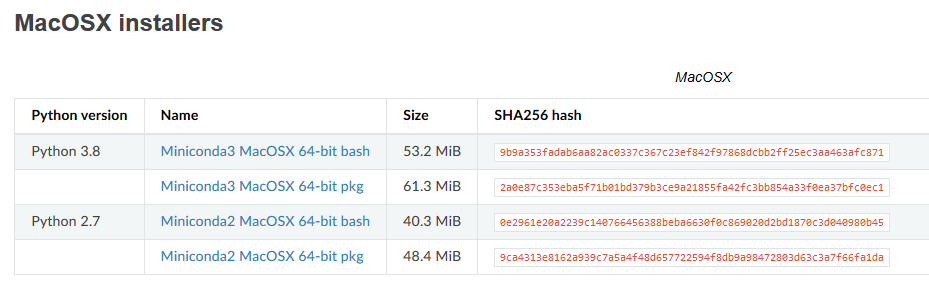
Visit the Miniconda download page and download the latest Python 3.8 installer for macOSX.
Linux#
Install Miniconda 3 and add it to system path using Terminal:
# Download and install miniconda
wget https://repo.anaconda.com/miniconda/Miniconda3-latest-Linux-x86_64.sh
bash Miniconda3-latest-Linux-x86_64.sh

# Follow the instructions on screen and install the software (you can use default options for questions)
Windows#
For this workshop (and otherwise), we highly recommend installing Windows Subsystem for Linux (WSL) and install the programming environment there. The computing environment used in our tutorials mixes Python and Java programming languages and getting them to work nicely together on Windows is…challenging (not impossible but installation troubles are likely).
Hence, check whether you already have WSL installed on your computer by searching for “Ubuntu” in the Start Menu. If you have it, jump to Step 3.
If you do not have WSL installed, install it by following these instructions: https://learn.microsoft.com/en-us/windows/wsl/install
Once you have WSL working, install Miniconda using the Ubuntu terminal by following the instructions for Linux above.
Warning
Still want to try the “normal” way? You can install Miniconda on Windows without issues but getting the libraries for this workshop to work properly can be tricky.
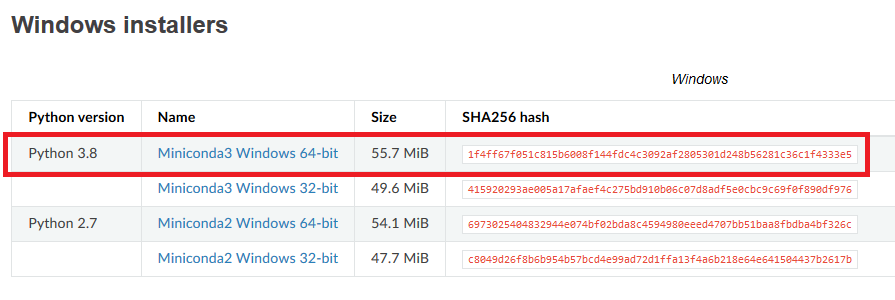
Visit the Miniconda download page and download the latest Miniconda3 Windows 64-bit installer for Windows.
Install Miniconda to your computer by double clicking the installer and install it into a directory you want (you might need admin rights). Install it to local user and use the default settings.
After the installation is completed, test that the package manager conda works by
opening an ``Anaconda prompt (miniconda3)` from the start menu,
and running command conda --version. If the command returns a version number of conda (e.g. conda 4.5.9) everything is working correctly.
Install the programming environment#
Installing various GIS packages (especially in Python) can be sometimes a bit tricky due to various dependencies
between the packages. Sometimes an older version of the package, or even an older Python version might be required for a
specific tool to work. The recommended way to get the installation working smoothly is to create a dedicated
virtual environment for the selected Python+R packages (e.g. for the ones used during this workshop).
A virtual environment is a separate installation including all required libraries as well as
the Python and R interpreters. It is a good practice to install all packages (if possible) from the same
conda channel (e.g. conda-forge which we recommend), and not to mix conda and pip for installations
if not strictly necessary.
Conda has an excellent documentation about creating and managing conda environments where you can check details of the used commands.
Installing mamba#
To get started we will install the mamba package manager in our new Miniconda environment (are you tired of all the snake references yet?). We can install mamba by opening an Anaconda prompt (miniconda) and running the following:
# Install mamba
conda install mamba -n base -c conda-forge
If you’re curious, you can find more about mamba in the online user guide which covers most of the basic things, such as installing new packages.
Installing the packages#
After installing mamba, the main steps for creating and using a conda environment:
create the environment from environment.yml file using mamba,
activate the environment
start using the environment (e.g. launch the JupyterLab and start coding, see below)
Windows users: we recommend doing these installations using Windows Subsystem for Linux (WSL).
We have prepared a ready-made environment file for this course (called environment.yml). You can DOWNLOAD IT FROM HERE.
After downloading the environment file, run the following commands on the same folder where you downloaded it.
If you don’t know how to navigate between different folders, check these short tutorials for terminal and command prompt (Windows).
The commands below work similarly in all operating systems where you have Miniconda (or Anaconda) installed:
1. Create the Python environment based on the file that you downloaded by using a terminal (or command prompt) and executing the following command in the directory where you downloaded the .yml file:
mamba env create -f environment.yml
Activate the environment:
conda activate geo
You should now see the name of the environment at the start of the command line.
Launch JupyterLab IDE
After you have installed all required packages, you can start working in a local Jupyter Lab environment that is
linked to your geo conda environment by launching jupyter lab on the command line.
It’s a good idea to first navigate to the folder where your Jupyter Notebook -files are located before launching Jupyter Lab.
jupyter lab
Note, Jupyter Lab will probably prompt you to “Build” the installation in order to get the git-plugin to show.
Hint
If you want to install some additional packages to your conda environment, ensure you have activated it (step 2 above) and install the package that you wish to install following the guidelines below.
Install OpenJDK Java Development Kit for Windows#
- These instructions only apply if:
you are on Windows AND
not using Windows Subsystem for Linux.
This means that if you followed the recommendations above and use WSL, you don’t need to do these steps.
r5py library rely on Java JDK engine. Hence to get the libraries working, you need to install OpenJDK to your computer.
Below are instructions how to do that.
Windows#
On Windows, you need to do a bit of manual work to get OpenJDK working. Follow these steps:
Go to https://jdk.java.net/java-se-ri/11 website
Download the
Windows/x64 Java Development Kit((sha256) 178.7 MB) from the site by pressing the linkExtract the contents of the Zipfile to your computer, e.g.
Downloads. As a result, you should see a folder calledjdk-11.Under the
C:\Program Filescreate a folder calledJava(requires admin rights)Copy and paste the
jdk-11folder into the newly createC:\Program Files\Javadirectory (requires admin rights).Open a command prompt in admin mode by typing
cmdin the Start menu -> right click the Command Prompt icon -> chooseRun as administrator.Once you have the command prompt open in admin mode, type
setx -m JAVA_HOME "C:\Program Files\Java\jdk-11\bin"which will create an environment variable calledJAVA_HOMEfor your computer which points to the folder where we copied thejdk-11.Close the command prompt
Open
Anaconda Prompt (miniconda)from the start menuActivate the
geoenvironment by typingconda activate geoRun command
python -c "import r5py". If this does not produce any errors, everything works!
General guide for installing packages with Mamba/Conda#
Conda has an excellent online user guide which covers most of the basic things, such as installing new packages. You can replace all conda commands listed in the user guide with mamba to be able to install the packages much faster.
Mamba install#
You can install new packages using the mamba install
command. The basic syntax for installing packages is mamba install package-name.
In addition, we also want to specify the conda channel from where the package is downloaded using the parameter -c.
Installing Pandas package from the conda-forge channel:
mamba install -c conda-forge pandas
Once you run this command, you will see also other packages getting installed and/or updated as conda checks for dependencies of the installed package. Read more about package installations in the conda documentation It’s a good idea to search for installation instructions for each package online.
You can install other useful packages in a similar way:
mamba install -c conda-forge matplotlib
mamba install -c conda-forge bokeh
mamba install -c conda-forge geopandas
Conda channels
Conda channels are remote locations where packages are stored. During this course (and in general when installing packages for scientific computing and GIS analysis) we download most packages from the conda-forge channel.
Conflicting packages
A good rule of thumb is to always install packages from the same channel (for this course, we prefer the conda-forge channel). In case you encounter an error message when installing new packages, you might want to first check the versions and channels of existing packages using the conda list command before trying again.
Installing JupyterLab#
We use JupyterLab as the main programming environment during this course. JupyterLab can be installed like any other packages using the conda install command.
For other options and more information, take a look at the JupyterLab installation instructions.
Install JupyterLab from the conda-forge channel:
mamba install -c conda-forge jupyterlab
After installation is completed, you can start a JupyterLab instance by running this command (notice the space between the words!):
jupyter lab
After running the command, JupyterLab should open up automatically in a browser window.
Git extension for JupyterLab#
After you have installed JupyterLab, you can also add the JupyterLab Git extension to your environment:
conda install -c conda-forge jupyterlab-git